Sponsored

Recent Blog Entries

  • The Diablo 4 universe continues to evolve with regular updates and fresh content that keep players on the edge of their seats. One of the most exciting recent announcements is the arrival of the Tower Beta, a new addition to the game that offers unique challenges, rewards, and a chance to Diablo 4 G...
  • Sklep papierniczy online proponuje Państwu w szerokim zakresie różnorakie artykuły papiernicze i artykuły biurowe, które mogą być przydatne zarówno dla każ**** przedsiębiorcy ale też dla osób prywatnych nie prowadzących działalności gospodarczej. Jako hurtownia papiernic...
  • This infographic provides a clear, step-by-step guide to restoring limestone floors affected by chips and cracks, helping homeowners and professionals bring natural stone surfaces back to life. It begins by emphasizing the importance of assessing the extent of damage, ensuring that minor imperfectio...
View All

Sponsored

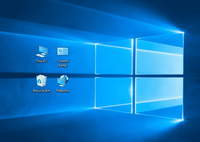
Show desktop icons in Windows 10

  • Show desktop icons in Windows 10

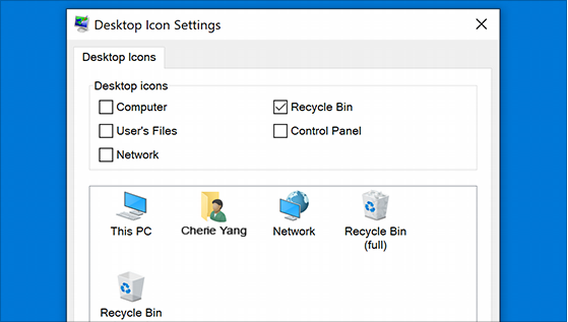
    The desktop icon may be hidden. To view it, right-click on the desktop, select View, and then select Show Desktop Icon. To add desktop icons like This PC, Recycle Bin, more: 

    1. Click the start button and then select Settings > Personalization > Themes.
    2. Under Themes > Related Settings, select Desktop Icon Settings.
    3. Select the icons you want to put on the desktop, then apply and click OK.
           

    1. Note. If you are in tablet mode, the desktop icons may not display correctly. You can find the program by searching for the program's name in File Explorer. To turn off tablet mode, select Action Center on the taskbar (next to date and time), and then select tablet mode to turn it on or off.

    Open Personalization settings

Sponsored

Sponsors