Sponsored

Recent Blog Entries

  • The expansion of digital entertainment has reshaped how people interact with traditional games, and togel online is a clear example of this transformation. Once limited to offline participation and local communities, number-based prediction games have evolved into accessible online formats that reac...
  •   In the world of interior design, the right lighting does more than just illuminate a room; it defines the atmosphere. The wagon wheel chandelier with glass shades is a masterclass in this balance, offering a sophisticated twist on a classic rustic silhouette. By combining the rugged, circula...
  • The online gaming world has seen a surge in interest for platforms that deliver both excitement and rewarding gameplay. Among them, SLOTO89 slot gacor has emerged as a popular choice for slot enthusiasts. The term “gacor” comes from Indonesian slang, meaning “active” or &ldqu...
View All

Sponsored

Microsoft Outlook 2010 setup

  • Setup POP3/IMAP email account with Microsoft Outlook 2010


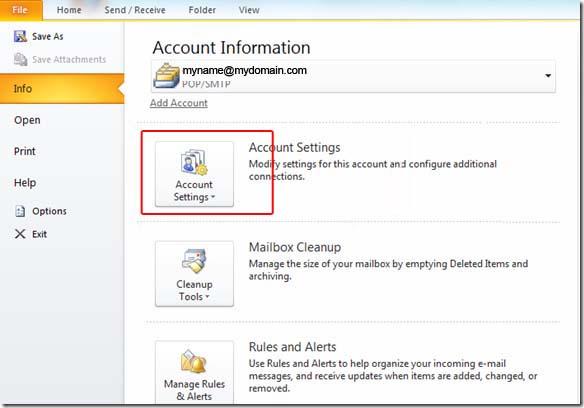
    STEP 1:   Open Microsoft Outlook 2010 and select File > Account Settings...


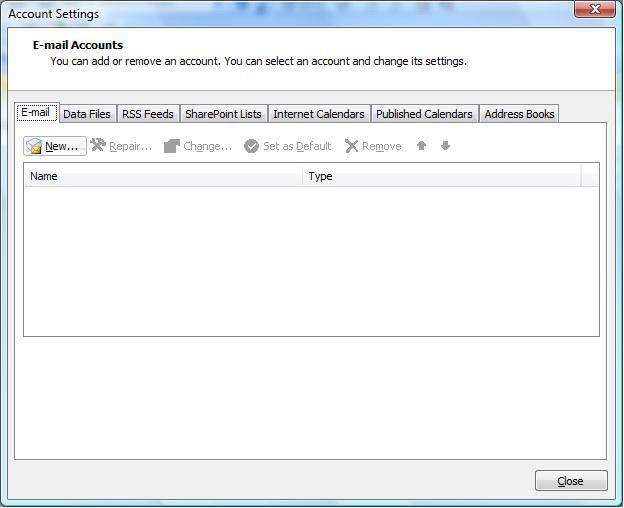
    STEP 2:   E-mail Accounts: Click the "New" button under the "Email" tab.


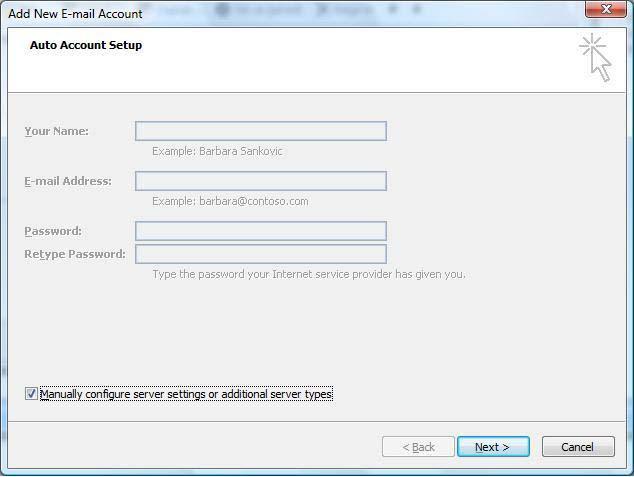
    STEP 3:   Auto Account Setup: Select "Manually configure server settings or additional server types".


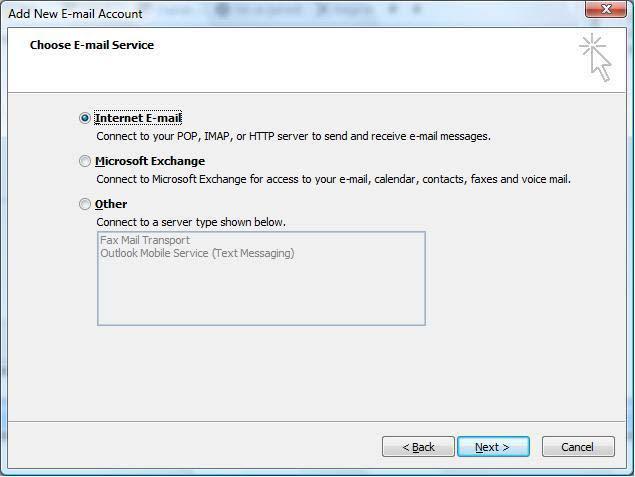
    STEP 4:   Choose E-mail Service: Select "Internet Email".


    The following informations are required::

    • Your Name: Your Full Name
    • Your full email address:
    • Incoming mail server (POP3): mail.yourdomain.com
    • Outgoing mail server (SMTP): mail.yourdomain.com
    • User Name: Your full email address
    • Password: The one you specified in your control panel when creating your email account


    STEP 5:   Once your settings look like the settings shown in this screenshot, click on the "More Settings..." button in the bottom right hand corner.
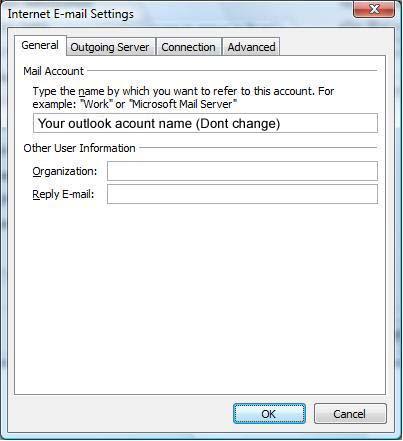


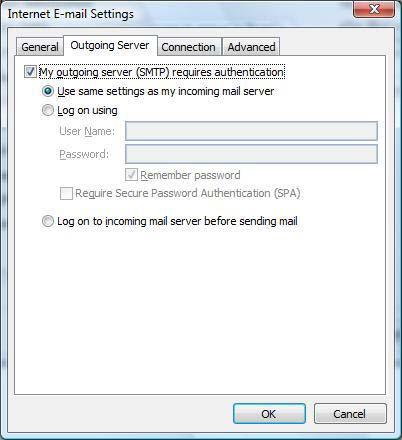
    STEP 7:   Internet E-mail Settings: Click the "Outgoing Server" tab at the top of the screen and Put a checkmark in "My outgoing server (SMTP) requires authentication" and make sure that the dot is in "Use same settings as my incoming mail server".


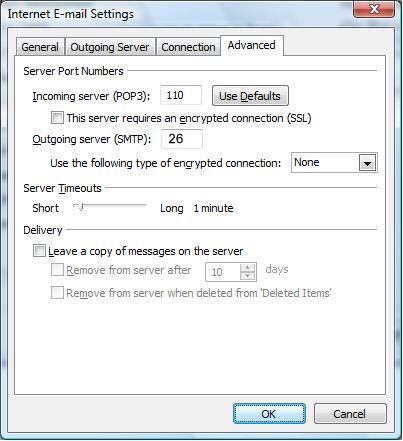
    STEP 8:   Advanced: Click on the "Advanced" tab at the top.

                   For Incoming Server (POP3): 110 and Outgoing Server (SMTP): 26


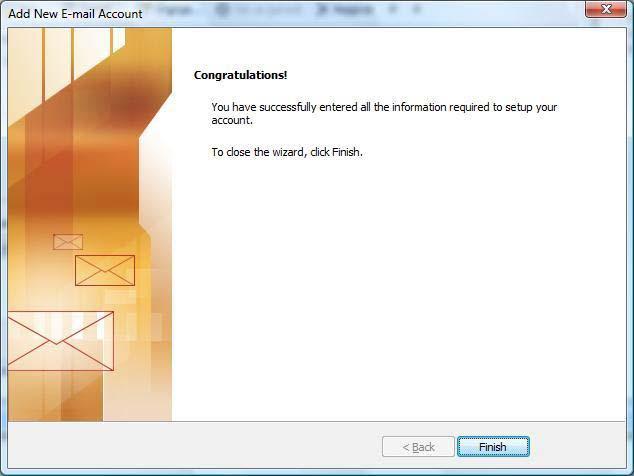
    STEP 9: Click the "OK", "Next" and then


    NOTE: As a courtesy, we provide information about how to use certain third-party products, but we do not endorse or directly support third-party products and we are not responsible for the functions or reliability of such products. Outlook® is a registered trademark of Microsoft Corporation in the United States and/or other countries. All rights reserved.

Comments

0 comments

Sponsored

Sponsors