Sponsored

Recent Blog Entries

  •   Another noticeable difference is the single-breasted buttons and belt-free finish available in black and honey beige. will be in attendance. editors are angling for more brooches and comb maxxing inspired by pre fall collection lookbook, in which models hair was fashioned into artsy updos he...
  • 在跨境电商、海外社媒运营和外贸沟通日益频繁的今天,语言问题仍然是许多团队面临的一大挑战。客户来自不同国家,聊天平台也各不相同,如果每次都需要手动翻译,不仅效率低,还容易影响沟通体验。因此,越来越多出海团队开始使用聊天实时翻译工具,其中CK翻译就是一款备受关注的解决方案。下面我们来全面拆解:CK翻译到底能为你解决哪些真实痛点?它具体能做什么?1. 一站式聚合海外主流社交平台支持平台:WhatsApp、Telegram、LINE、Facebook Messenger、Instagram DM、Zalo、Skype、Twitter/X 等主流出海渠道。一台电脑、多开多个客户端,同时管理几十上百个账号...
  •   If you Alaia Handbags Outlet are searching for variety among your outerwear options this winter, you'll want to add one of the best quilted to the mix. Abrams, the house newly appointed Fine Jewelry ambassador, was feeling fine indeed. They need to have experts in their teams who can source ...
View All

Sponsored

Microsoft Outlook 2010 setup

  • Setup POP3/IMAP email account with Microsoft Outlook 2010


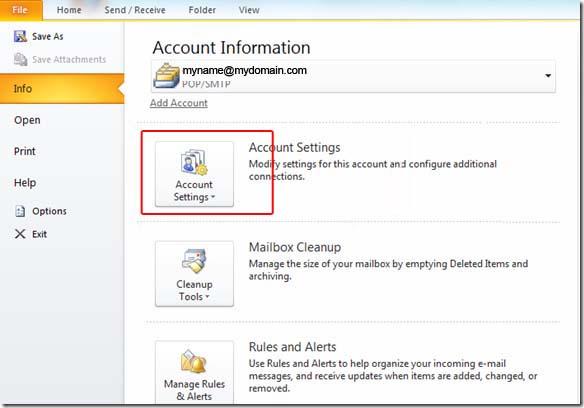
    STEP 1:   Open Microsoft Outlook 2010 and select File > Account Settings...


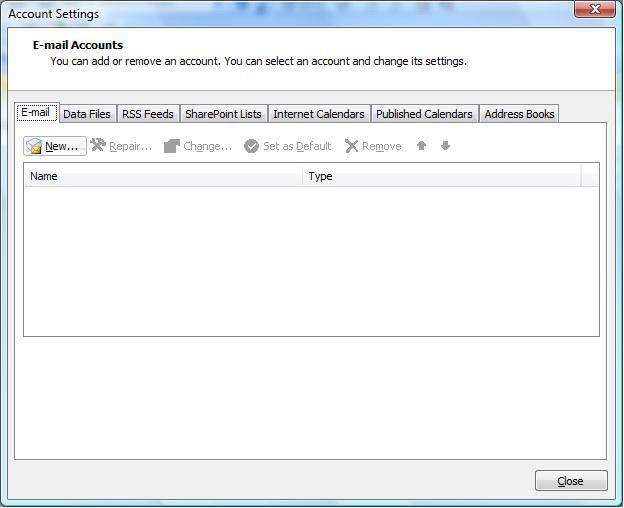
    STEP 2:   E-mail Accounts: Click the "New" button under the "Email" tab.


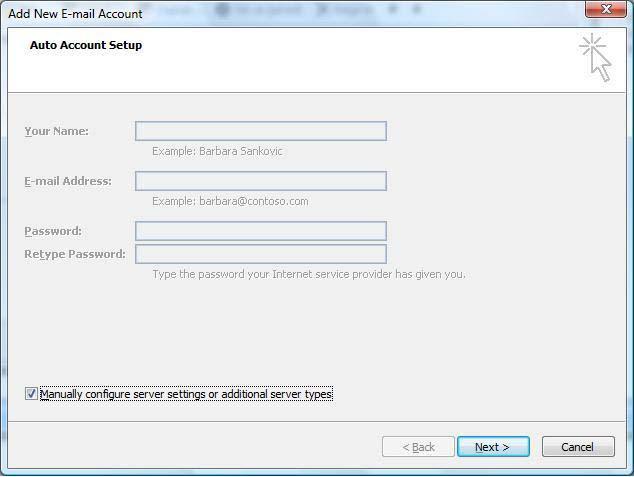
    STEP 3:   Auto Account Setup: Select "Manually configure server settings or additional server types".


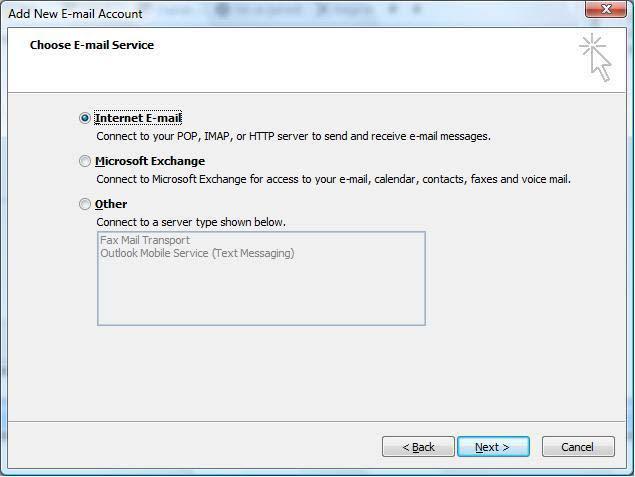
    STEP 4:   Choose E-mail Service: Select "Internet Email".


    The following informations are required::

    • Your Name: Your Full Name
    • Your full email address:
    • Incoming mail server (POP3): mail.yourdomain.com
    • Outgoing mail server (SMTP): mail.yourdomain.com
    • User Name: Your full email address
    • Password: The one you specified in your control panel when creating your email account


    STEP 5:   Once your settings look like the settings shown in this screenshot, click on the "More Settings..." button in the bottom right hand corner.
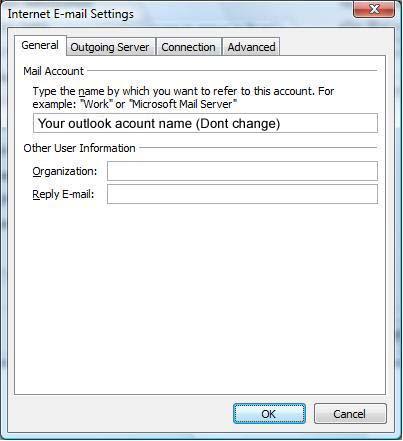


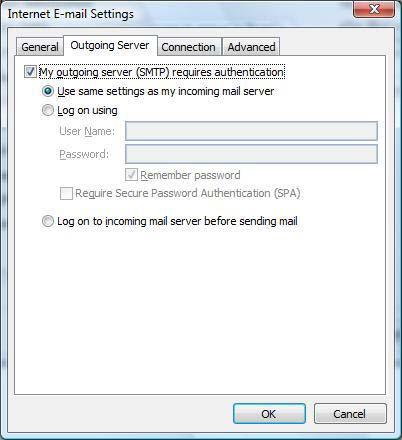
    STEP 7:   Internet E-mail Settings: Click the "Outgoing Server" tab at the top of the screen and Put a checkmark in "My outgoing server (SMTP) requires authentication" and make sure that the dot is in "Use same settings as my incoming mail server".


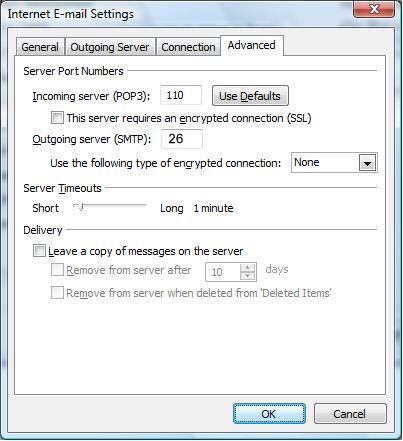
    STEP 8:   Advanced: Click on the "Advanced" tab at the top.

                   For Incoming Server (POP3): 110 and Outgoing Server (SMTP): 26


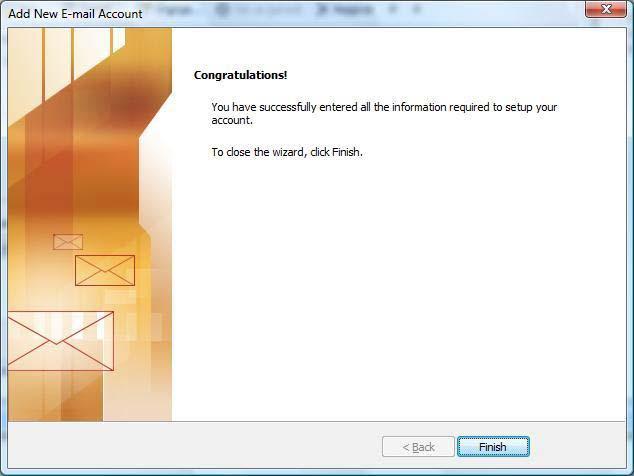
    STEP 9: Click the "OK", "Next" and then


    NOTE: As a courtesy, we provide information about how to use certain third-party products, but we do not endorse or directly support third-party products and we are not responsible for the functions or reliability of such products. Outlook® is a registered trademark of Microsoft Corporation in the United States and/or other countries. All rights reserved.

Comments

0 comments

Sponsored

Sponsors