Sponsored

Recent Blog Entries

  •   Understanding the World of Poker Online The popularity of digital card games has increased massively, and Poker Online has become one of the most played games across the world. Players enjoy poker online because it combines skill, strategy, and excitement, all accessible from anywhere at an...
  • The phrase bandar togel 4D has become increasingly popular in online discussions about number-based games. As digital entertainment continues to expand, traditional lottery-style activities are finding new life through online platforms. Bandar togel 4D represents a modern interpretation of classic n...
  • The expansion of digital entertainment has reshaped how people interact with traditional games, and togel online is a clear example of this transformation. Once limited to offline participation and local communities, number-based prediction games have evolved into accessible online formats that reac...
View All

Sponsored

Microsoft Outlook 2010 setup

  • Setup POP3/IMAP email account with Microsoft Outlook 2010


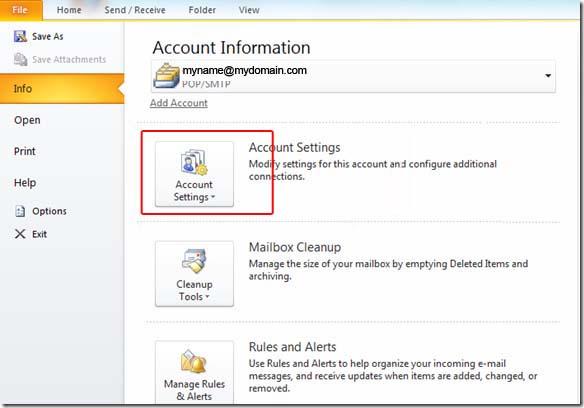
    STEP 1:   Open Microsoft Outlook 2010 and select File > Account Settings...


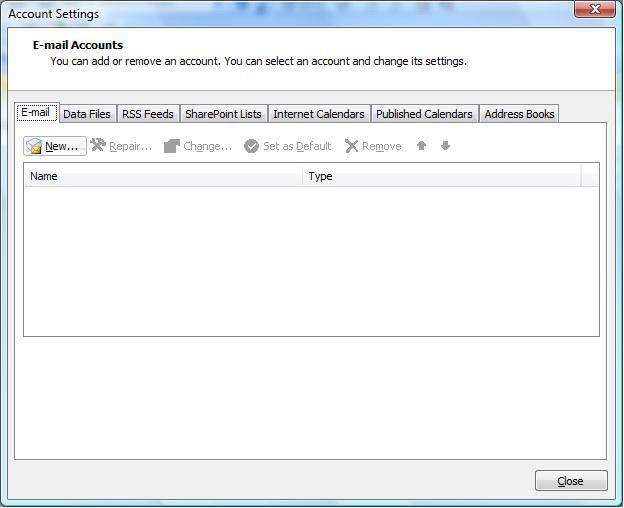
    STEP 2:   E-mail Accounts: Click the "New" button under the "Email" tab.


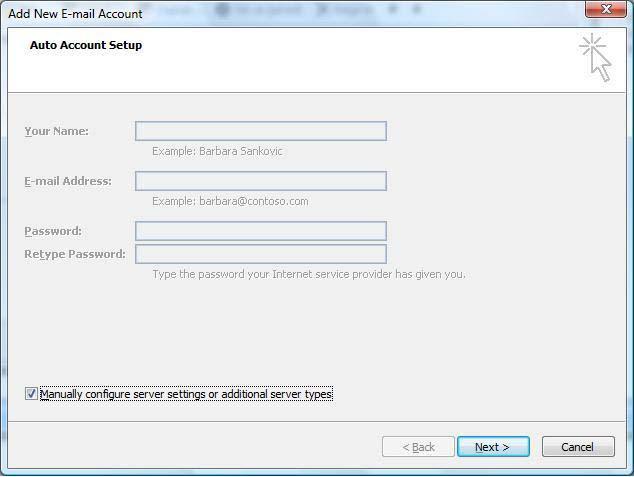
    STEP 3:   Auto Account Setup: Select "Manually configure server settings or additional server types".


    STEP 4:   Choose E-mail Service: Select "Internet Email".
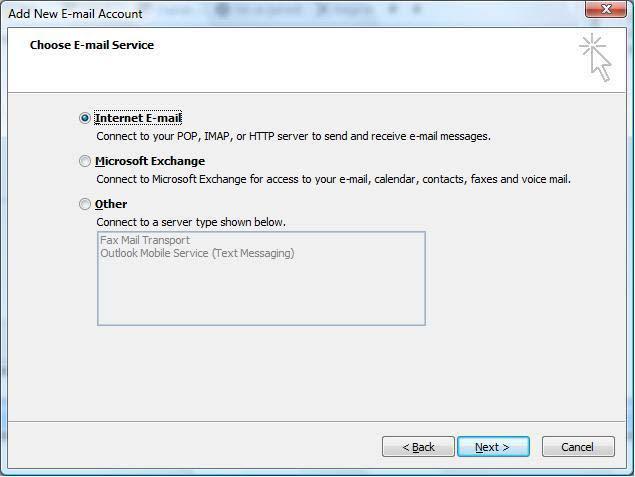


    The following informations are required::

    • Your Name: Your Full Name
    • Your full email address:
    • Incoming mail server (POP3): mail.yourdomain.com
    • Outgoing mail server (SMTP): mail.yourdomain.com
    • User Name: Your full email address
    • Password: The one you specified in your control panel when creating your email account


    STEP 5:   Once your settings look like the settings shown in this screenshot, click on the "More Settings..." button in the bottom right hand corner.
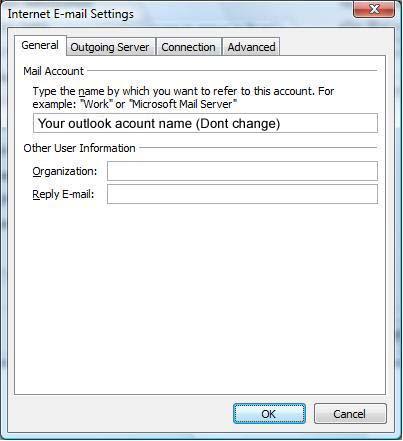


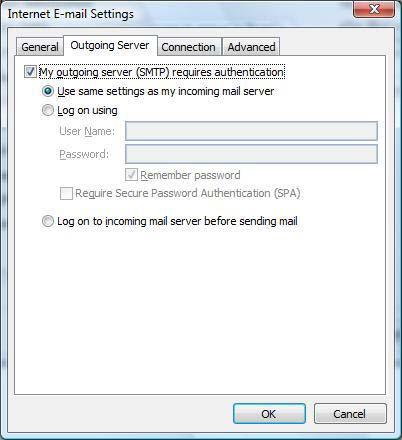
    STEP 7:   Internet E-mail Settings: Click the "Outgoing Server" tab at the top of the screen and Put a checkmark in "My outgoing server (SMTP) requires authentication" and make sure that the dot is in "Use same settings as my incoming mail server".


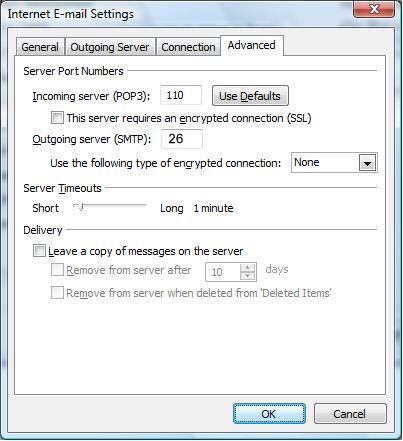
    STEP 8:   Advanced: Click on the "Advanced" tab at the top.

                   For Incoming Server (POP3): 110 and Outgoing Server (SMTP): 26


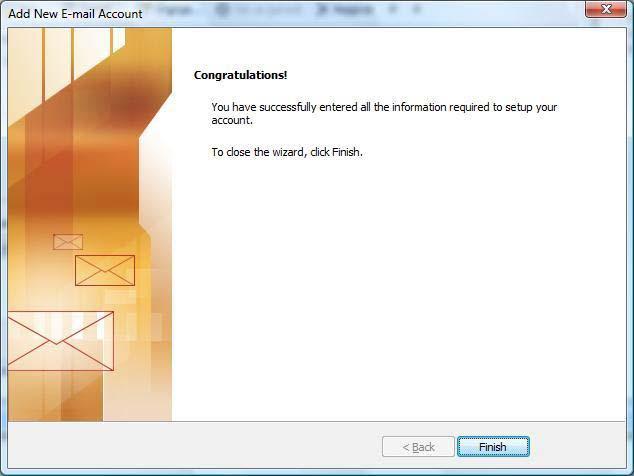
    STEP 9: Click the "OK", "Next" and then


    NOTE: As a courtesy, we provide information about how to use certain third-party products, but we do not endorse or directly support third-party products and we are not responsible for the functions or reliability of such products. Outlook® is a registered trademark of Microsoft Corporation in the United States and/or other countries. All rights reserved.

Comments

0 comments

Sponsored

Sponsors